


Thinking about migrating from PrestaShop to Shopify?
Great pick!
Frustrated with endless customizations, clunky third-party modules, a sluggish store, and skyrocketing maintenance costs? PrestaShop to Shopify Migration has become a necessity.
And you’re not alone. Many merchants get drawn into the “free store” trap, only to realize later that nothing is truly free; there’s always a hidden cost. But before migration comes strategic planning to ensure a hassle-free, seamless transition experience.
That’s why we’ve put together a PrestaShop to Shopify migration checklist.
With over a decade of experience helping stores migrate, we’ve packed it with everything you need to know to make the move easy and stress-free.
In this guide, we’ll walk you through each step, from preparing your store to post-migration optimization, so you can transition to Shopify with confidence!
PrestaShop to Shopify Migration Checklist at a Glance
A PrestaShop to Shopify migration moves your products, customers, content and URLs onto Shopify, then rebuilds the theme, payments, shipping and redirects before you switch your domain. Here is the full checklist in order; each step is explained in detail below.
Back up and audit your PrestaShop database, files and data.
Choose a Shopify plan that fits your traffic, sales and growth.
Export products, customers and other data from PrestaShop.
Import into Shopify: products first, then customers, then historical orders.
Choose and customize a theme, then optimize product pages and navigation.
Set up payment gateways and shipping methods.
Map old URLs and set up 301 redirects to protect your SEO.
Test links, images, checkout, taxes and shipping.
Go live and announce the move to customers.
Monitor and promote the new store after launch.
Preparing Your PrestaShop Store for Migration
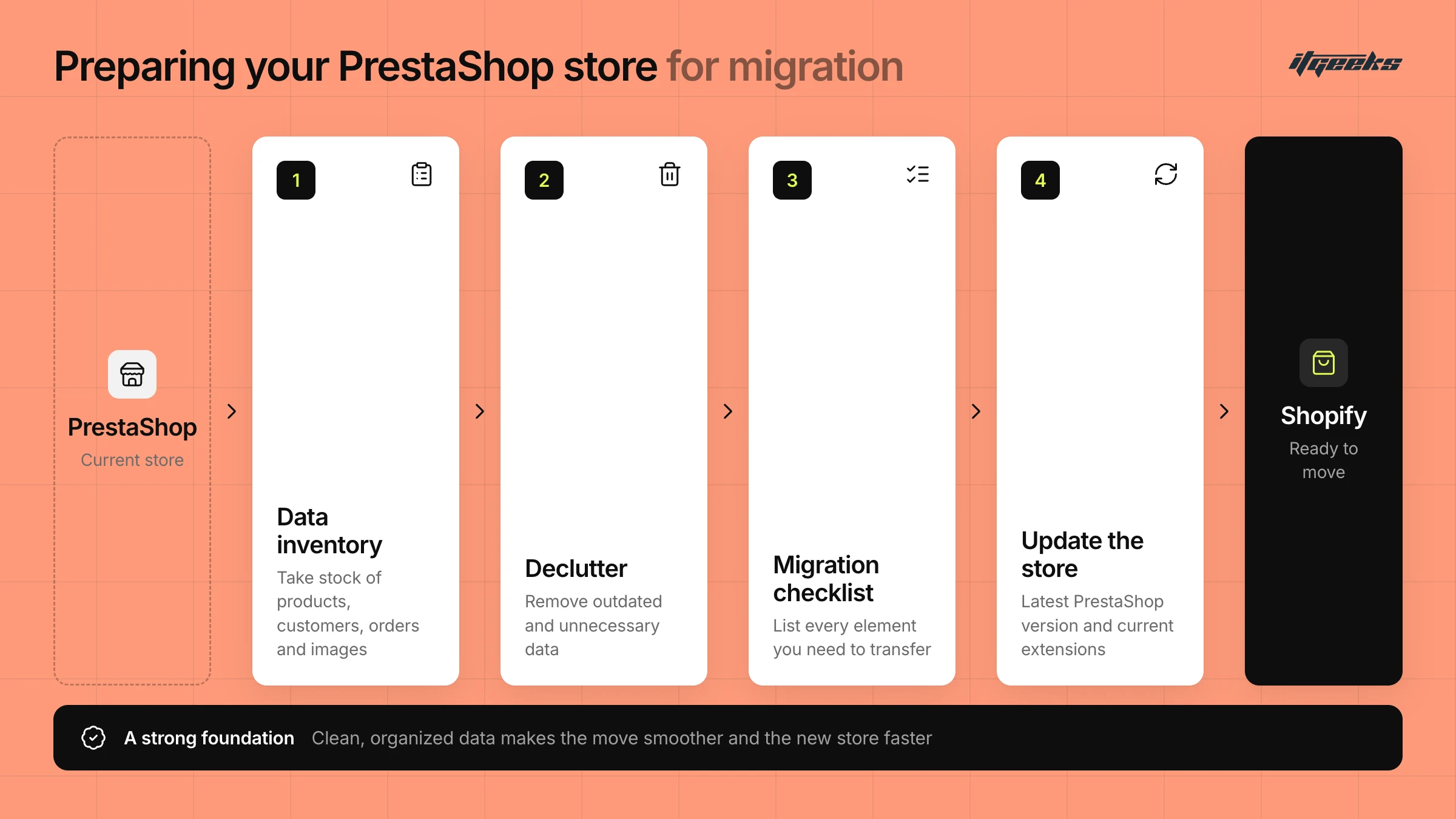
A superstructure needs a strong foundation, and getting your PrestaShop store ready for migration is your first step towards a robust Shopify store. This phase lays the groundwork for a successful migration by making sure your data, products, and content are in the best possible shape before the move.
By conducting a thorough content inventory of your PrestaShop store, take stock of everything: product details, customer records, order history, images, and any other critical data. Having a clear, organized inventory will help you determine exactly what needs to be transferred to your new Shopify store.
Next, it’s time to declutter. Over time, stores accumulate outdated or unnecessary data that slow down the migration process. Removing redundant information not only makes the transition smoother but also enhances the performance and efficiency of your new Shopify store.
To stay organized, create a migration checklist. List all the essential elements you need to transfer. A well-structured checklist ensures nothing gets left behind.
Lastly, make sure your PrestaShop store is up to date. Running on outdated software or plugins leads to compatibility issues during migration. Updating your PrestaShop store to the latest version and ensuring all extensions are current will help prevent unnecessary roadblocks and make the transition as seamless as possible.
Back Up PrestaShop Before You Change Anything
Before you export, delete or update anything, take a full backup of your PrestaShop database and files. Keep the old store running until the new Shopify store has been tested, so you always have a safe fallback if a field is mapped incorrectly.
Also note which PrestaShop modules you rely on (reviews, filters, loyalty, shipping or payment modules). Most have a Shopify app or built-in equivalent, and knowing the list early avoids surprises when you plan your budget.
Selecting the Right Shopify Plan for Your Needs
Just like moving into a rental home requires choosing the right space and paying the rent, migrating your store means selecting the right Shopify plan that fits your needs.
Choosing the right plan is a crucial step. It doesn’t just impact the transition, it affects your store’s long-term performance, scalability, and costs. And that’s why it’s important to make this decision carefully.
Start by analyzing your current PrestaShop store. Look at key metrics like website traffic, sales volume, and customer base. Understanding your store’s current performance helps you estimate future needs and ensures you choose a Shopify plan that meets your requirements while allowing room for growth.
Shopify offers multiple plans. As you explore options, consider both your current budget and your business's future expansion. Striking the right balance between affordability and scalability is key.
Assess the features your PrestaShop store relies on. Check whether Shopify includes these features in your chosen plan or if additional apps or customizations are needed. This helps you avoid unexpected costs and complications.
Shopify makes it easy to upgrade when needed, ensuring flexibility as you scale. Plus, with 24/7 customer support, you’ll have expert assistance at your fingertips, whether you need help during migration or later down the road.
Taking the time to select the right Shopify plan now will set the foundation for a seamless transition and long-term success.
Shopify Plans to Compare
Shopify’s current plans are Basic, Grow and Advanced for most merchants, and Shopify Plus for high-volume and enterprise brands. Prices differ by country and billing period, so check the Shopify pricing page for your region. If you are weighing up Plus, read our guide on whether Shopify Plus is the right fit for your business.
Exporting Data from PrestaShop
Now it’s time to pack up your goods to move to the new house!
Exporting data from your PrestaShop store is a crucial step in the migration process. Your store’s data (product details, customer information, order history, and more) is the backbone of your business, so accuracy and organization are key to maintaining functionality and continuity.
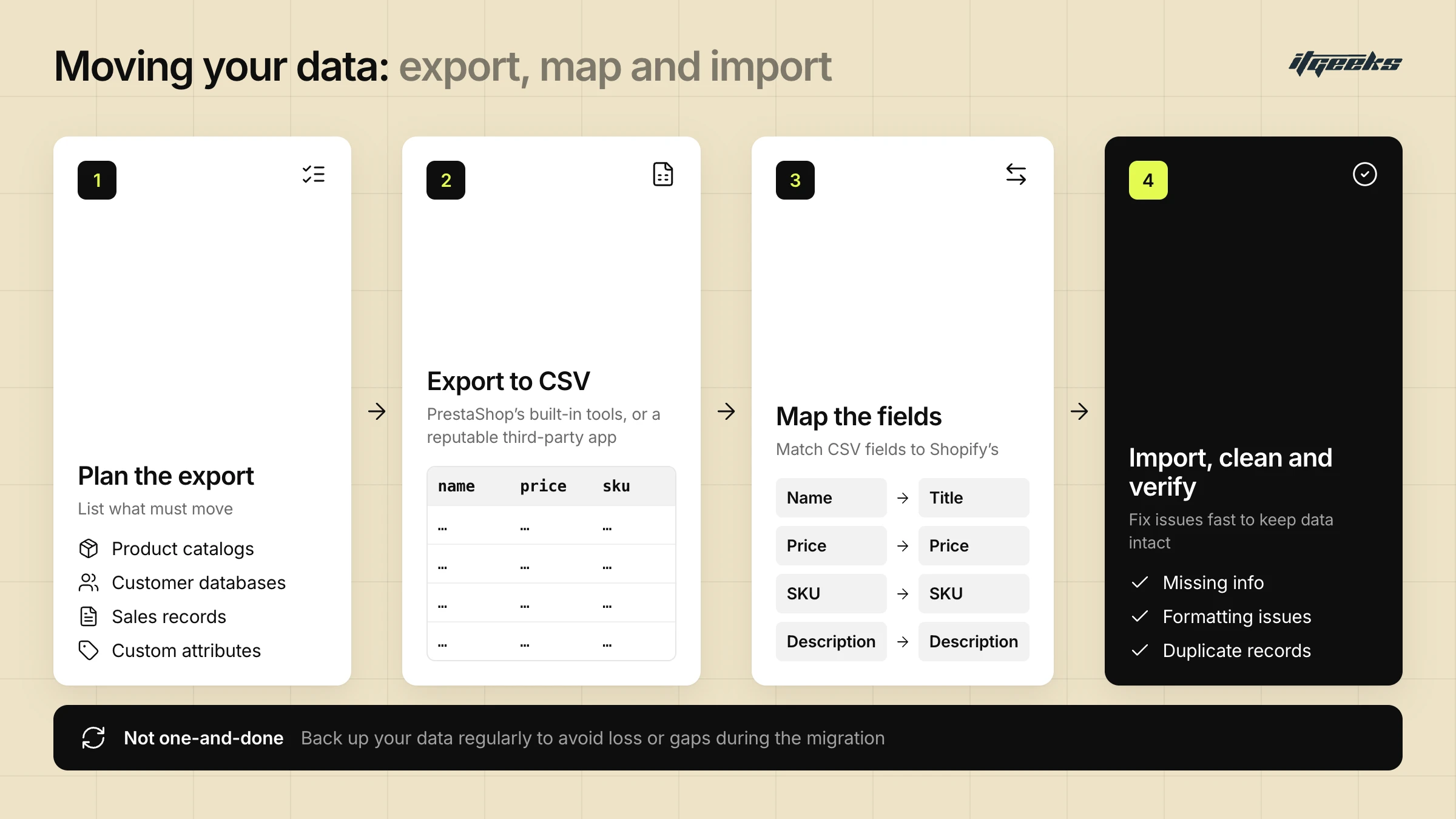
PrestaShop provides built-in export tools that make data extraction easier. These tools typically generate CSV files, a format that’s widely used for transferring data and is fully compatible with Shopify.
Before diving in, take a moment to plan what needs to be exported. Your checklist should cover everything from product catalogs and customer databases to sales records and any custom attributes unique to your PrestaShop setup.
If PrestaShop’s native export tools don’t quite meet your needs, third-party apps and extensions can offer more flexibility and customization options. Just be sure to choose a reputable solution that aligns with your migration goals and ensures data accuracy.
Staying organized is crucial. Make sure your exported data is structured in a way that Shopify can easily interpret. This might involve mapping fields to match Shopify’s format, ensuring that product images, descriptions, pricing, and customer details transfer seamlessly.
Remember, data export isn’t a one-and-done task. It’s an ongoing process. Regularly back up your data to keep everything up to date and minimize the risk of loss or discrepancies during migration. A little preparation now will save you headaches later and set the stage for a seamless transition!
What to Export From PrestaShop
PrestaShop’s own CSV import documentation lists the data types it handles: categories, products, combinations, customers, addresses, brands and suppliers. It is a handy checklist of what to export. Menu names vary slightly between PrestaShop versions, so check the documentation for yours.
One difference to plan for: PrestaShop “combinations” become Shopify variants, and a Shopify product supports up to three options (for example size, colour and material). Products that use more attributes need to be restructured before import.
Importing Data into Shopify
Now it's your turn to load the packed goods into the truck to send to your house.
Goods include all your important information, like product details, customer records, and order history, to transfer to your new Shopify store, ensuring everything runs smoothly from the start. The process starts with choosing the import method -
Shopify offers several import options to suit a variety of data sources and complexities. Most commonly, you'll work with CSV files, which are versatile and widely supported. These files allow you to structure your data into organized tables, making it easier to map and import into Shopify. However, if your migration is more complex or involves large datasets, you might need specialized migration experts. These experts help handle intricate data transformations and ensure accuracy during the import process.
One of the most important tasks during this phase is data mapping. This is where you match fields in your CSV files to the corresponding fields in Shopify, such as ensuring product names, descriptions, prices, SKUs, and other vital details are placed correctly in your store. It’s a detailed task that requires precision and a clear understanding of your data structure.
During the import, be ready to clean and verify your data. Inconsistencies or errors (such as missing info, formatting issues, or duplicate records) can arise. Addressing these issues quickly is essential for maintaining data integrity and ensuring your Shopify store functions smoothly.
Shopify Import Limits and What a CSV Cannot Import
Shopify’s CSV imports cover products and customers, but not every data type. Before you start, note these limits from Shopify’s help documentation:
Product CSV: the file can’t exceed 15 MB, so split large catalogs into several files (Shopify: import products).
Product images: a CSV only contains text, so images must already be hosted at publicly accessible https URLs, which Shopify downloads during import (Shopify: CSV format).
Customer CSV: files must be UTF-8 and 15 MB or smaller, with an Email column (Shopify: import customers).
Passwords: customer passwords can’t be imported, so invite customers to create new ones after import.
Orders: order information isn’t imported through the customer CSV. Shopify lists historical orders as data you can migrate with a migration app, a Shopify Partner or a custom API solution.
Shopify recommends importing products first, then customers, then historical orders, so that orders link to the right products and customers. You can also switch off staff new-order notifications during the order import (Shopify: migrating to Shopify). If your data is large or complex, our Shopify migration services can handle the mapping and import for you.
Designing your Shopify store
While designing the store, remember that it's more than just aesthetics. It’s about creating an engaging and seamless user experience that drives conversions. The user interface should resonate and enhance your brand identity.
Choosing the Right Theme
The first step is selecting a Shopify theme that aligns with your brand’s style and industry. Shopify offers a wide range of customizable themes, from sleek and minimalist to bold and dynamic. Take the time to explore your options and choose a theme that best reflects your brand’s personality and meets your customers' expectations.
Customizing Your Store
Once you've picked your theme, it's time to personalize it. Adjust the colors, fonts, and layout to match your branding. Consistency across design elements enhances visual appeal and reinforces your brand identity, making your store look professional and trustworthy.
Optimizing Product Pages
Your product pages play a crucial role in converting visitors into buyers. Ensure they include:
High-quality images
Clear, professional images help showcase your products effectively.Detailed descriptions
Highlight key features and benefits to inform and persuade shoppers.Customer reviews
Build trust by displaying social proof.
Clear CTAs
Make "Add to Cart" buttons stand out for easy purchasing.
Streamlining Navigation
A well-structured navigation menu helps users find what they need quickly. Organize your products into clear categories and subcategories, and enhance usability with:
Search bars
Allow customers to find products effortlessly.
Filters and sorting options
Improve the browsing experience for larger inventories.
Prioritizing User Experience
A clean, uncluttered layout with ample white space makes your store more visually appealing and easier to navigate. Also, mobile responsiveness is crucial, as a growing number of shoppers browse and purchase via smartphones. Shopify themes are designed to be mobile-friendly, but always test your store on different devices to ensure a seamless shopping experience.
By focusing on these key design elements, you'll create a Shopify store that not only looks great but also delivers a smooth and enjoyable experience for your customers, setting the stage for e-commerce success!
Not sure which theme to start with? Our guide to choosing the perfect Shopify theme walks through what to compare.
Setting up payment gateways and shipping methods
When migrating from PrestaShop to Shopify, these configurations determine how customers make payments and receive their orders, directly impacting their shopping experience and your store’s success.
1. Configuring Payment Gateways
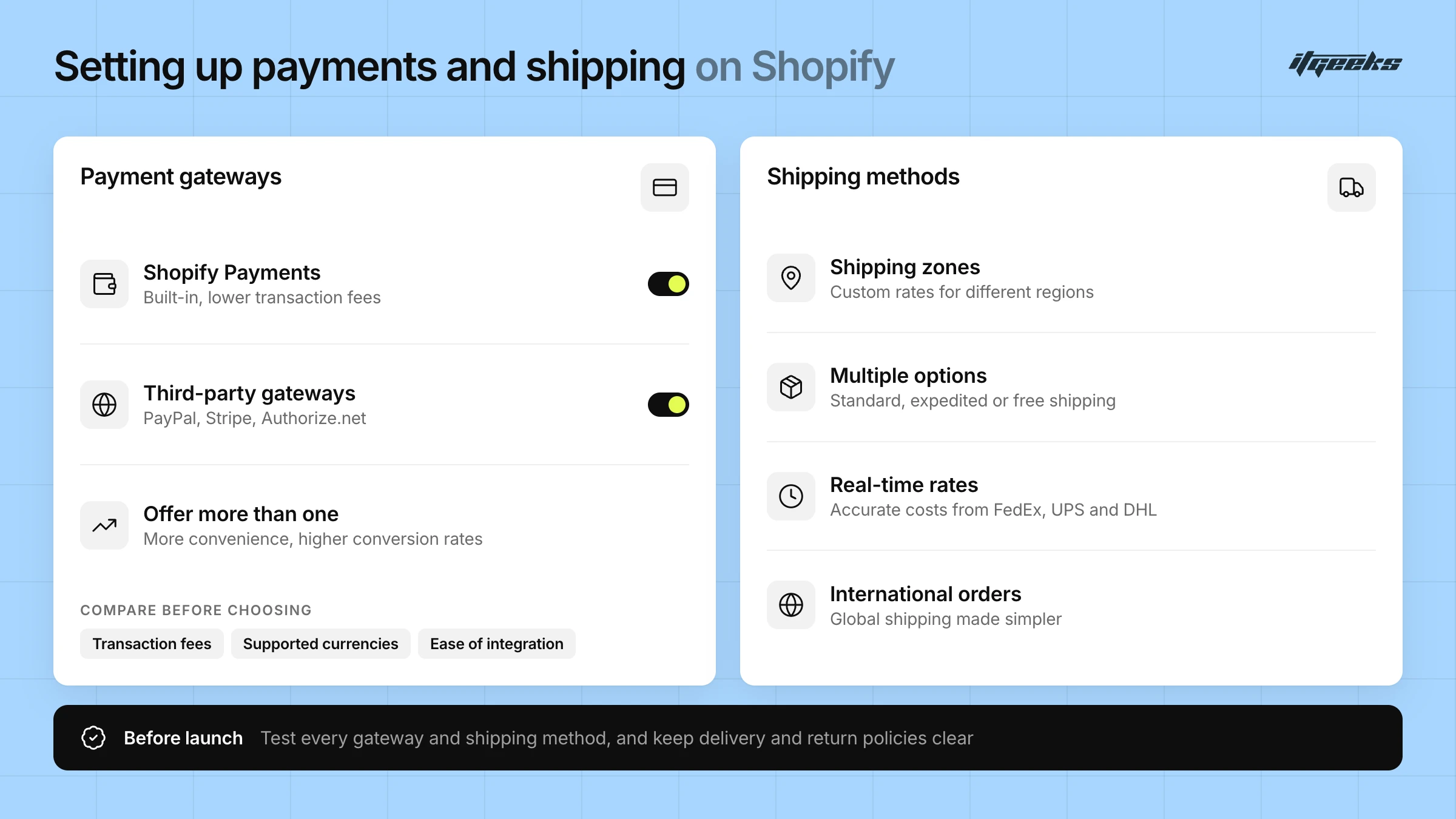
Shopify offers multiple payment gateway options, including:
Shopify Payments
A built-in, hassle-free solution with lower transaction fees.
Third-Party Gateways
Popular options like PayPal, Stripe, and Authorize.net are available for global transactions.
When selecting a payment gateway, consider the following:
Transaction fees
Different providers have varying fee structures
Supported currencies
Ensure compatibility with your target customers.
Ease of integration
A seamless setup avoids payment issues.
Offering multiple payment options improves customer convenience and boosts conversion rates.
2. Setting Up Shipping Methods
Shipping plays a key role in customer satisfaction. Shopify provides flexible shipping configurations, allowing you to:
Create shipping zones
Set custom shipping rates for different regions.
Offer multiple shipping options
Standard, expedited, or free shipping for promotions.
Use real-time shipping rates.
Shopify integrates with carriers like FedEx, UPS, and DHL to provide accurate costs at checkout.
For international orders, Shopify simplifies global shipping, ensuring customers worldwide can receive their purchases efficiently.
3. Finalizing Your Setup
Ensure accurate setup of shipping zones and rates to prevent hidden costs.
Test payment gateways and shipping methods before launch to guarantee a smooth experience.
Keep policies clear on estimated delivery times and return procedures.
A well-optimized payment and shipping setup enhances trust, reduces cart abandonment, and ensures a seamless shopping journey for your customers.
Shopify Payments and Third-Party Gateway Fees
Shopify charges additional third-party transaction fees on orders processed through gateways other than Shopify Payments. PayPal is the exception when Shopify Payments is your primary provider. Fee rates depend on your location and plan, so confirm them in Shopify’s third-party payment provider documentation before you choose a gateway.
SEO & URL Redirects:
Don`t let your traffic get lost in migration!
Migration is an exciting step! But here’s the thing: if you don’t handle your SEO and URL redirects properly, you could lose all that hard-earned search traffic. And nobody wants that, right?
First things first, make a list of all your PrestaShop URLs: every product page, category, and blog post. Think of it as your roadmap so nothing gets left behind. Once you have that, the next step is mapping these old URLs to their new Shopify versions. This ensures customers (and search engines) can still find everything in the right place.
Now, here’s the real game-changer: 301 redirects. These tell search engines, “Hey, this page has moved permanently, so please send all traffic (and SEO value) to the new one.” Without them, you risk broken links, lost rankings, and frustrated visitors hitting dead ends. Not fun.
While you're at it, don’t forget to update metadata and image alt tags. Page titles, descriptions, and headers should be optimized for Shopify’s SEO structure. And those alt tags? They help search engines understand your images, so they’re super important!
At the end of the day, a smooth SEO transition means your store doesn’t just move to Shopify, it keeps growing. A little planning now saves a lot of headaches later. With the right redirects & SEO tweaks, your store will stay visible and search-friendly.
How to Set Up 301 Redirects in Shopify
Collect every old URL. Pull them from your PrestaShop sitemap, analytics and Google Search Console, including products, categories, CMS pages and blog posts.
Map each URL to its closest match. Send every old page to the equivalent new Shopify page (for example a /products/ or /collections/ URL), not just the homepage, and avoid redirect chains.
Add the redirects in Shopify. In the admin, go to Content > Menus > View URL Redirects, then create them one by one or import a CSV (Shopify: URL redirects).
Know the limits. Standard Shopify stores can hold up to 100,000 redirects (Plus stores up to 20,000,000), and a redirect only works when the old URL would otherwise return a 404.
Keep them in place. Google advises keeping redirects for as long as possible, generally at least one year, and submitting a new sitemap in Search Console (Google: site moves with URL changes).
Google’s Change of Address tool is only needed if your domain changes. Expect some ranking fluctuation after launch, and watch the Search Console reports closely. For more detail, see our guide on how to maintain SEO rankings during a Shopify migration.
Testing Your New Shopify Store: Don’t Skip This Step!
So, you’ve migrated from PrestaShop to Shopify, exciting, right? But before you pop the confetti and go live, there’s one crucial step left: testing your store. Trust me, a little testing now can save you from a ton of customer complaints later.
Check for Broken Links & Missing Images
Ever clicked on a link only to land on an error page? Frustrating, isn’t it? Go through your entire Shopify store: click every link, check every page, and make sure all product images and banners load properly. A missing image or a broken link can turn potential customers away really fast.
Test the Shopping Cart & Checkout Process
Imagine a customer filling up their cart, reaching checkout… and then, bam! An error stops them from buying. That’s a lost sale right there. To avoid this, add items to your cart, apply discount codes, check shipping calculations, and test every payment option. Make sure taxes and shipping fees are displayed correctly and that the entire checkout process runs without a hitch.
Get a Fresh Pair of Eyes on It!
Sometimes, you’re too close to the project to catch small but important details. Ask a few friends, colleagues, or trusted customers to browse your store and place test orders. Their feedback can help spot issues you might have missed.
Keep a Checklist & Fix Issues Before Launch
Did you find a glitch? Jot it down and prioritize fixes before going live. Your goal is a smooth, frustration-free shopping experience that keeps customers coming back.
A well-tested store = happy customers = more sales. It's as simple as that.
Extra Pre-Launch Checks
Test a sample of old PrestaShop URLs and confirm each one redirects to the correct new page.
Confirm taxes, order confirmation emails and customer notifications behave as expected.
Check that analytics and conversion tracking are installed, and that the storefront is no longer password protected.
Review common mistakes before launch in our guide to migration mistakes to avoid.
Finalizing Your PrestaShop Shutdown: The Last Steps Before Going All-In on Shopify!
The move is almost complete, it’s time to say goodbye to PrestaShop and fully embrace Shopify! But before you close the doors for good, here are a few final steps to make the transition smooth for both you and your customers.
Announce the Move
Let your customers know about the switch! Post an update on your website, send out an email, and share it on social media. Highlight the benefits, faster performance, a better shopping experience, and exciting new features.
Make the Switch Easy
Don’t leave customers guessing. Share the new Shopify store link everywhere, and if needed, guide them on how to access their accounts or reset passwords.
Set Up 301 Redirects
This is a must! Redirect old PrestaShop URLs to Shopify so customers (and search engines) don’t hit dead ends. This keeps your SEO intact and ensures a seamless browsing experience.
Be There for Customers
Expect some questions. Whether it’s via email, live chat, or social media, be ready to assist customers with anything they need during the transition.
Track & Optimize
Keep an eye on website traffic, customer feedback, and any hiccups in the shopping experience. Use this data to fine-tune your Shopify store and make it even better.
With these steps in place, your migration from PrestaShop to Shopify will be smooth, and your new Shopify store will be set up for success. Ready to make it official?
Post-Migration Marketing & Promotion: Time to Make Some Noise!
Your Shopify store is live, congrats!
Now, it’s time to spread the word and bring in customers. Here’s how you can maximize visibility and boost sales:
Email Marketing: Send a warm welcome to your subscribers! Highlight the benefits of your new store and throw in a special launch discount to get them excited.
Social Media Buzz: Announce the big move with eye-catching posts, behind-the-scenes content, and even a fun countdown. Run targeted ads to reach a bigger audience.
Exclusive Launch Offers: Who doesn’t love a good deal? Offer limited-time discounts, free shipping, or a giveaway to attract both loyal and new customers.
Track Performance: Use Shopify analytics and Google Analytics to monitor traffic, conversions, and customer behavior. The numbers will tell you what’s working (and what’s not).
Engage with Your Customers: Stay active on social media, reply to comments and messages, and encourage reviews. Happy customers = more word-of-mouth marketing!
Measure & Optimize: Keep testing different promotions, social posts, and email strategies. Use data to refine your marketing and keep sales growing.
Your Shopify store is live, now let’s make it a success!
Note that despite all the effort and time, there are definitely chances that something might go off the track as you are migrating the store for the first time. It's recommended that migration experts be hired. Here`s Why
Why You Should Hire Migration Experts for Your Store Transition
Migrating your online store from one platform to another, whether it’s from PrestaShop to Shopify, Magento to WooCommerce, or any other switch, is a massive undertaking. While the idea of handling it yourself might seem tempting, the process is far more complex than it seems. This is where migration experts come in! Hiring professionals ensures a smooth transition without the headaches, technical errors, and potential revenue loss that can occur with DIY migration. Let’s dive into why seeking expert help is the smartest move.
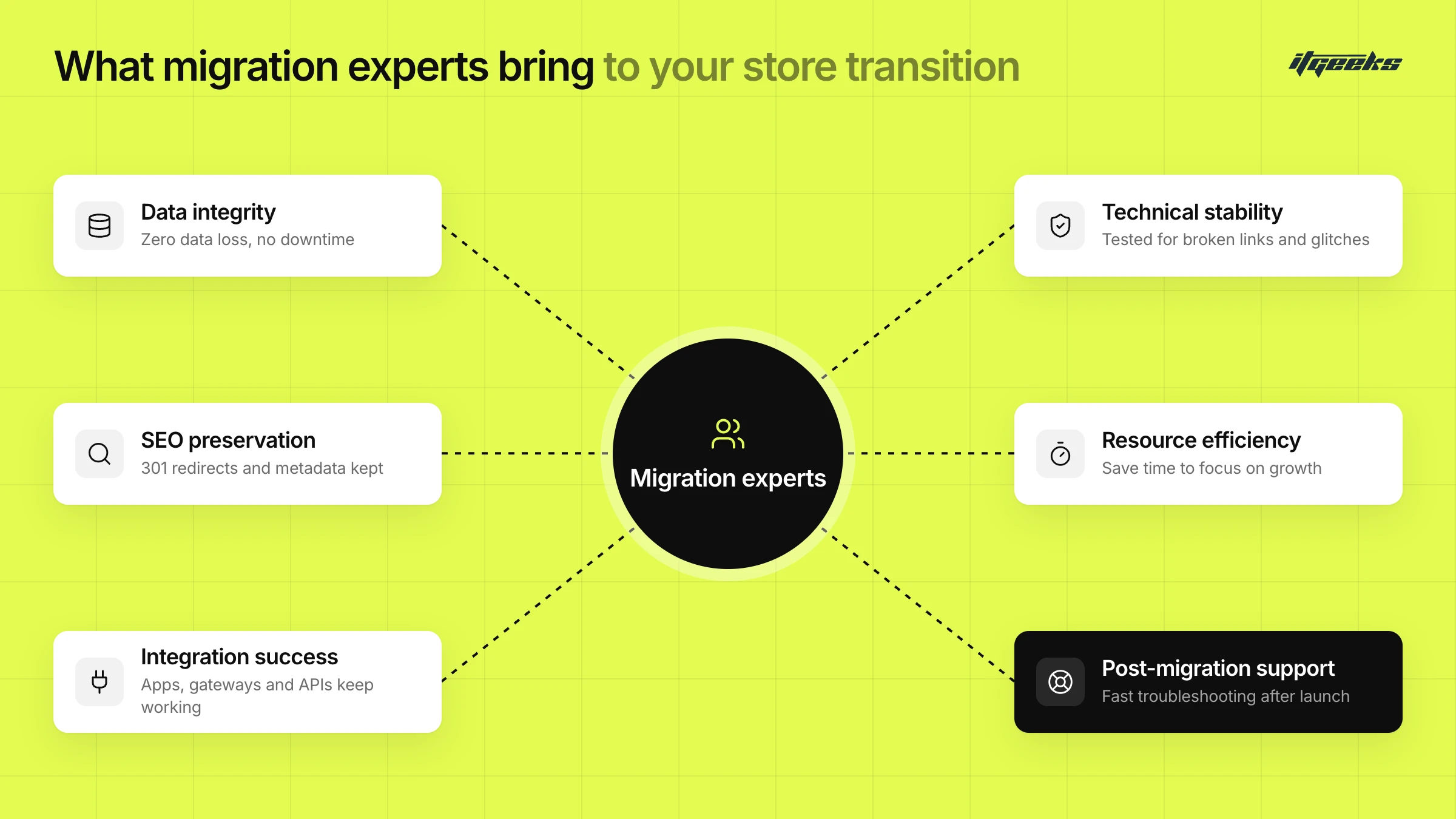
1. Zero Data Loss, No Downtime
Your store is your business lifeline, and even a minor data loss can lead to serious consequences. Migration experts ensure that all your critical data (products, customer details, order history, and SEO settings) are securely transferred without loss. They also minimize downtime so your store stays operational, preventing potential sales drops.
2. Flawless SEO Preservation
One of the biggest fears store owners have when migrating is losing their hard-earned SEO rankings. Experts carefully implement 301 redirects, maintain metadata, and ensure that URL structures remain optimized so your organic traffic remains stable. Without proper SEO management, your store could face a major dip in visibility, impacting your revenue.
3. Avoid Technical Glitches & Broken Links
Imagine launching your new store only to find broken images, missing product descriptions, or incorrect pricing. Migration specialists conduct thorough testing to ensure everything functions perfectly post-migration. They check for broken links, test integrations, and ensure a seamless shopping experience for customers.
4. Seamless Platform Integrations
Your store likely uses multiple third-party apps, payment gateways, and APIs that need to function seamlessly post-migration. Experts handle complex integrations, ensuring that everything from payment processing to inventory management continues to work flawlessly in the new environment.
5. Save Time & Resources
Let’s face it: migrating a store is time-consuming, and as a business owner, your focus should be on growth, not troubleshooting technical issues. Migration experts streamline the process, allowing you to concentrate on marketing, customer engagement, and sales while they handle the heavy lifting.
6. Expert Troubleshooting & Post-Migration Support
Even after a successful migration, minor glitches may arise. With migration professionals by your side, you have access to immediate troubleshooting and post-migration support to quickly resolve any unexpected issues, ensuring a smooth transition for both you and your customers.
7. Final Thoughts: Invest in Peace of Mind
Migrating your store is a big step, and cutting corners can lead to data loss, SEO damage, and customer frustration. Investing in migration experts gives you peace of mind, knowing your store is in good hands and your business remains uninterrupted. If you’re planning to switch platforms, don’t do it alone. Partner with professionals and make your transition seamless, efficient, and stress-free.
Migrate your store the right way!
Why ITGeeks Are Your Migration Experts!
Migrating your online store is a crucial step, and choosing the right experts can make all the difference. Here’s why ITGeeks, as your Prestashop to Shopify migration service, is the perfect partner for a seamless and stress-free migration:
Expertise You Can Trust: With years of experience, we’ve successfully migrated numerous eCommerce stores, ensuring a smooth transition every time.
Complex Development: We develop complex structures for personalized user experiences!
Zero Data Loss & Minimal Downtime: We securely transfer all your store data while keeping your business running without interruptions.
SEO Preservation: We implement 301 redirects and optimize URL structures to safeguard your rankings and organic traffic, and also try to boost your seo rankings simultaneously!
Time & Cost Efficiency: Save time and resources while we handle the technical complexities, allowing you to focus on growth.
Dedicated Post-Migration Support: We don’t just migrate; we provide ongoing support to tackle any unexpected issues.
Choosing ITGeeks means choosing reliability, expertise, and a hassle-free migration experience.
Let us handle your migration while you focus on scaling your business!
PrestaShop to Shopify Migration FAQs
What is the first step in a PrestaShop to Shopify migration?
Back up your PrestaShop database and files, then take a full inventory of your products, customers, orders, images, pages and URLs. This tells you what to move, what to clean up and which PrestaShop modules need a Shopify equivalent. Keep the old store live until the new one is fully tested.
Can I import PrestaShop customer passwords into Shopify?
No. Shopify can’t import customer passwords from another store because they are encrypted outside Shopify. Import your customers by CSV or migration app, then invite them to create new passwords and register their accounts. It helps to tell customers about this before launch.
Can I migrate my PrestaShop order history to Shopify?
Yes, but not through Shopify’s customer CSV, which doesn’t import order information. Shopify lists historical orders as migratable data using a migration app, a Shopify Partner or a custom API solution. Import products and customers first so orders link correctly.
How do I keep my SEO rankings when moving from PrestaShop to Shopify?
Map every old URL to its closest new Shopify page and set up 301 redirects. Carry over page titles, meta descriptions and image alt text, submit a new sitemap in Google Search Console, and keep the redirects in place for at least a year. Monitor Search Console after launch.
Should I use a migration app or hire an expert?
Shopify lists several routes: CSV import, migration apps, a Shopify Partner or a custom API build. CSV and apps can suit small, simple catalogs. For large catalogs, custom attributes, integrations or tight SEO requirements, an experienced partner reduces risk. See our guide on choosing the right Shopify migration agency.
Ready to move? Explore our Shopify migration services, read our complete guide to migrating to Shopify, or talk to our team.